From importing scans to a print, a zine and a post.
Getting started
Install Spool, open it and you can convert 36 frames for free. A licence unlocks everything, for good.
Computers using this licence — 2 of 4
Studio PCthis computerActivated 25.09.2026Deactivate
MacBook AirActivated 16.10.2026Deactivate
Deactivate frees a place: that computer goes back to the trial the next time it starts, and can be activated again later.
Download Spool for Windows or macOS and install it.
On first launch a short guide shows each tab. Close it any time — it comes back until you choose “Don't show this again”.
To activate, click Activate at the top and enter the key and email from your Payhip receipt. One licence works on 4 computers.
Import photos
Bring scans or camera files in. Spool keeps them where they are, or copies them into a folder of your choice.
12345
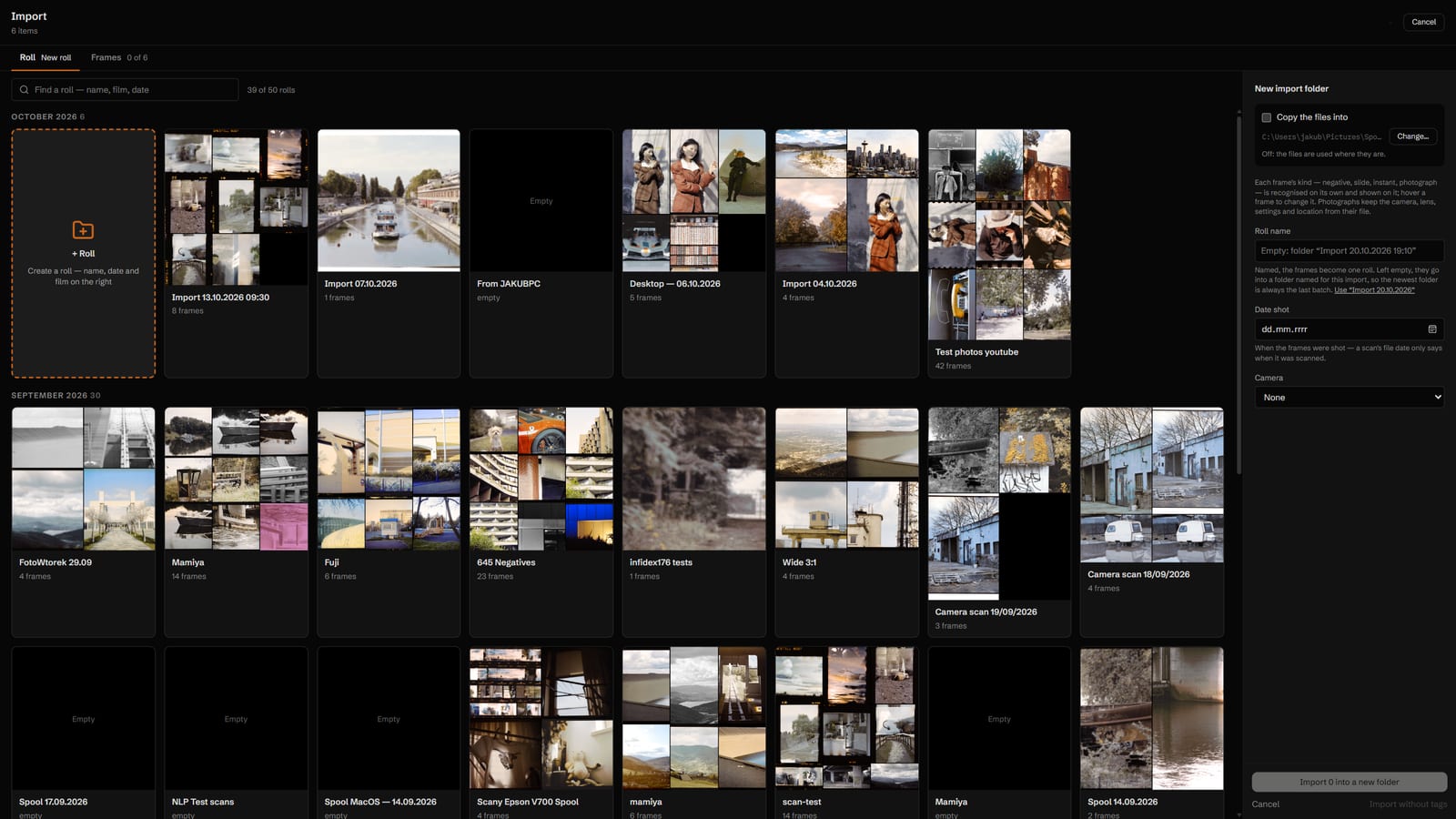
Click the orange import button at the bottom of the left rail, or drop files onto the window. Pick the scans. In the Import window, + Roll starts a new roll.
Or click an existing roll to add the frames to it.
Frames shows the files — untick any you don't want.
On the right: copy the files into a folder, name the roll, set the date shot and the camera.
Click Import. The roll appears in the Rolls panel.
A hot folder: scans come in by themselves
At the bottom of the left rail: the filled button imports photos, the next one a whole folder, the third sets up a hot folder.
Use a folder you have — the one your scanner software saves to — or create a new one in Pictures › Spool.
Name the roll, add the camera and film if you like, and Start watching. Each new scan arrives in that roll.
Already have a hot folder? Spool asks whether the new one replaces it or is added beside it.
Rolls and the library
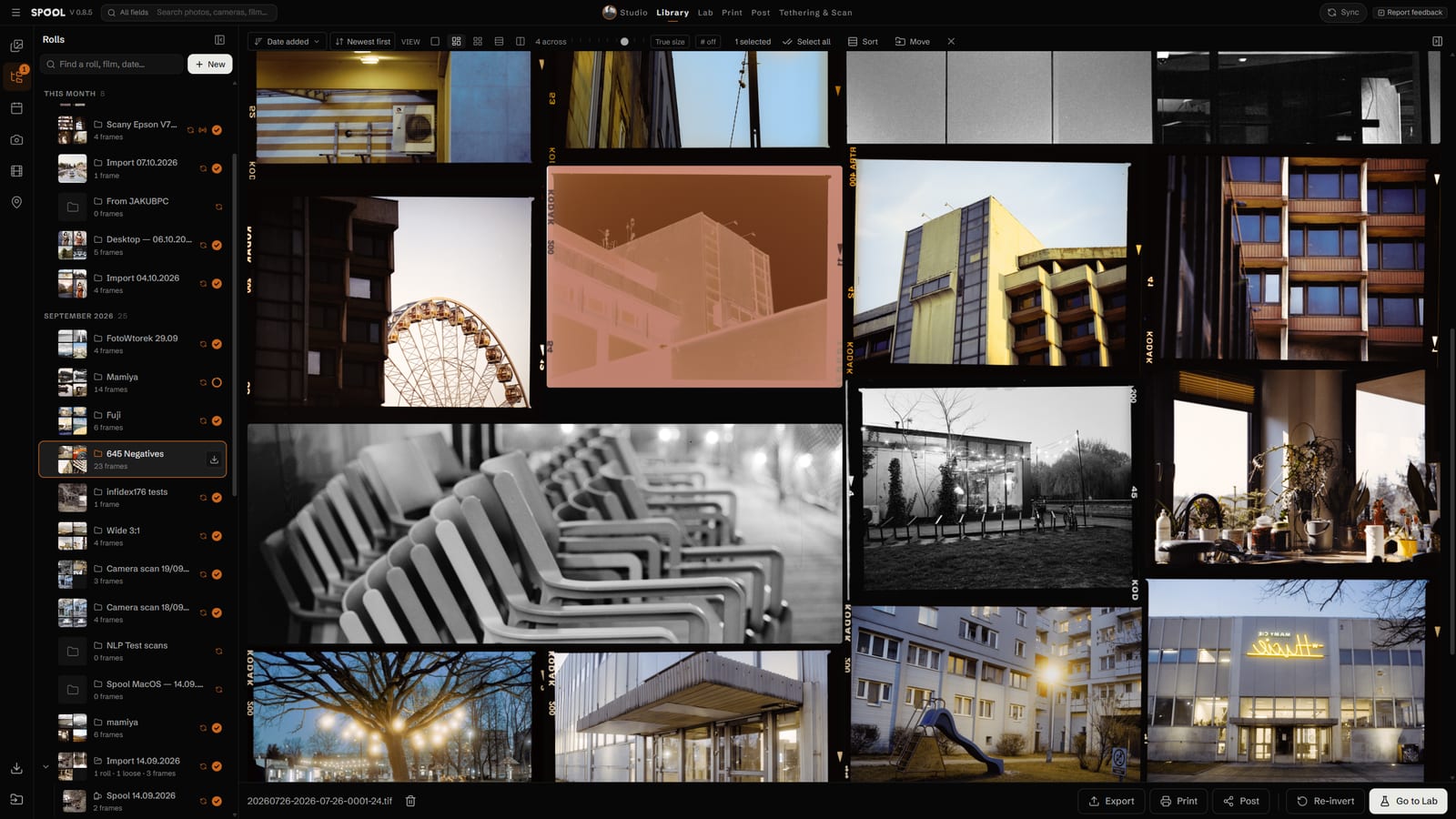
Every import lands in a roll. Browse by roll, date, camera, film or place, and pick how frames are laid out.
123456
+ New creates an empty roll; drag frames or rolls onto one to move them, or into each other to make folders.
Click a roll to see its frames.
The icons on the left rail switch the panel: rolls, dates, cameras, film, places.
Change the view: justified, grid, sheet or compare — and how many frames across.
Sort by date added or shot, newest or oldest first.
Go to Lab opens the selected frames for conversion and editing.
Change a photo's details
Camera, lens, film, place, exposure, rating and colour label — all editable for one frame or many at once.
12345
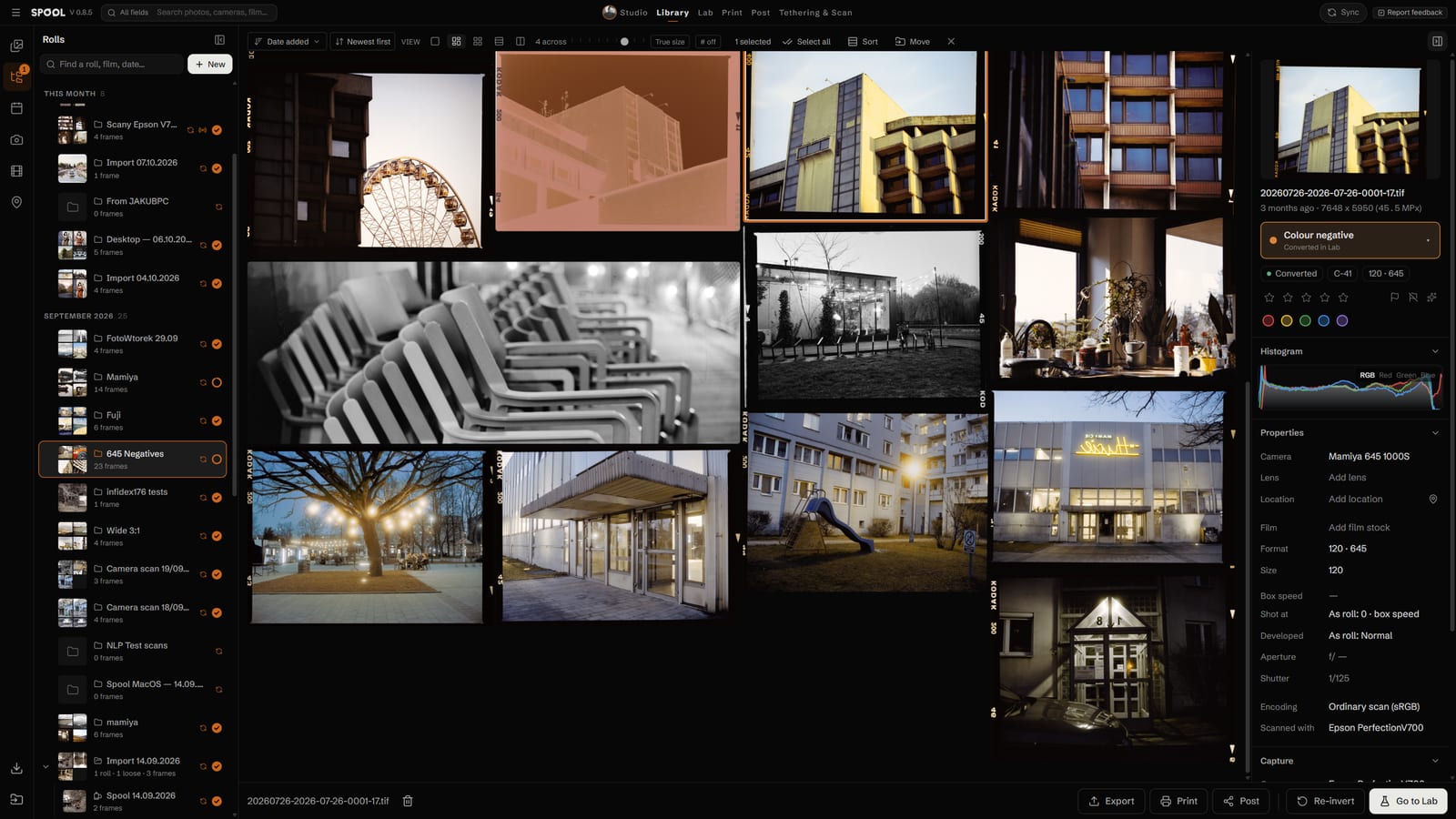
Click a frame. Ctrl-click (⌘ on Mac) or Shift-click to pick several — changes then apply to all of them.
Open the details panel with this button if it is hidden.
Set what the frame is: colour or B&W negative, slide, instant or photograph.
Stars, flags and colour labels for sorting the keepers.
Click any property — camera, lens, location, film — and type or pick from your list.
Convert a negative
Lab turns a negative into a photograph in four steps. Spool reads the colour of the film itself, so most frames need one click.
1234
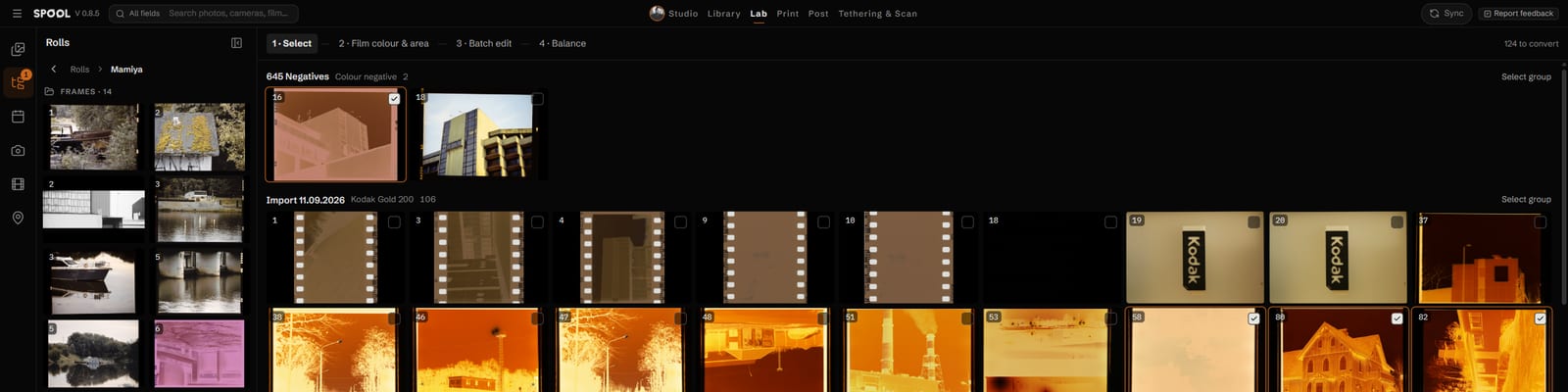
Open Lab. Step 1 · Select shows the frames still waiting to be converted.
Click the frames to convert — or several at once.
Select group picks a whole roll in one click.
“All in library” lists every unconverted frame, not just this roll. Then press Convert at the bottom right.
123456
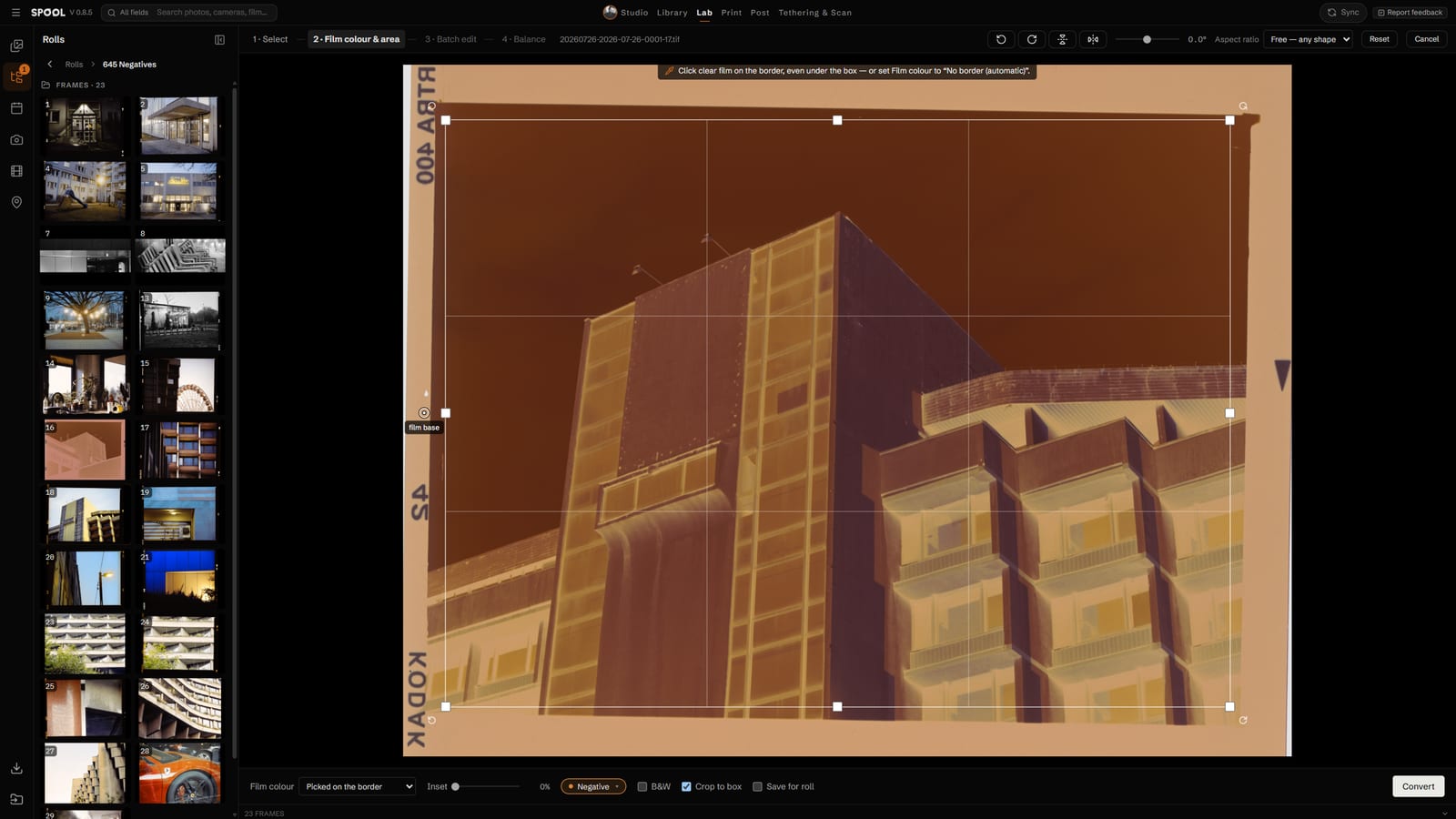
Click clear film on the border — the unexposed edge. That point is the film's own colour.
Drag the box so it covers the picture and leaves the holder and sprocket holes out.
No border on the scan? Set Film colour to “No border (automatic)”.
Crop to box crops the photo to the box; off keeps the whole scan.
Straighten, turn and set the box proportions here.
Convert (or Enter). The frames go on to Batch edit and Balance.
Convert and edit many at once
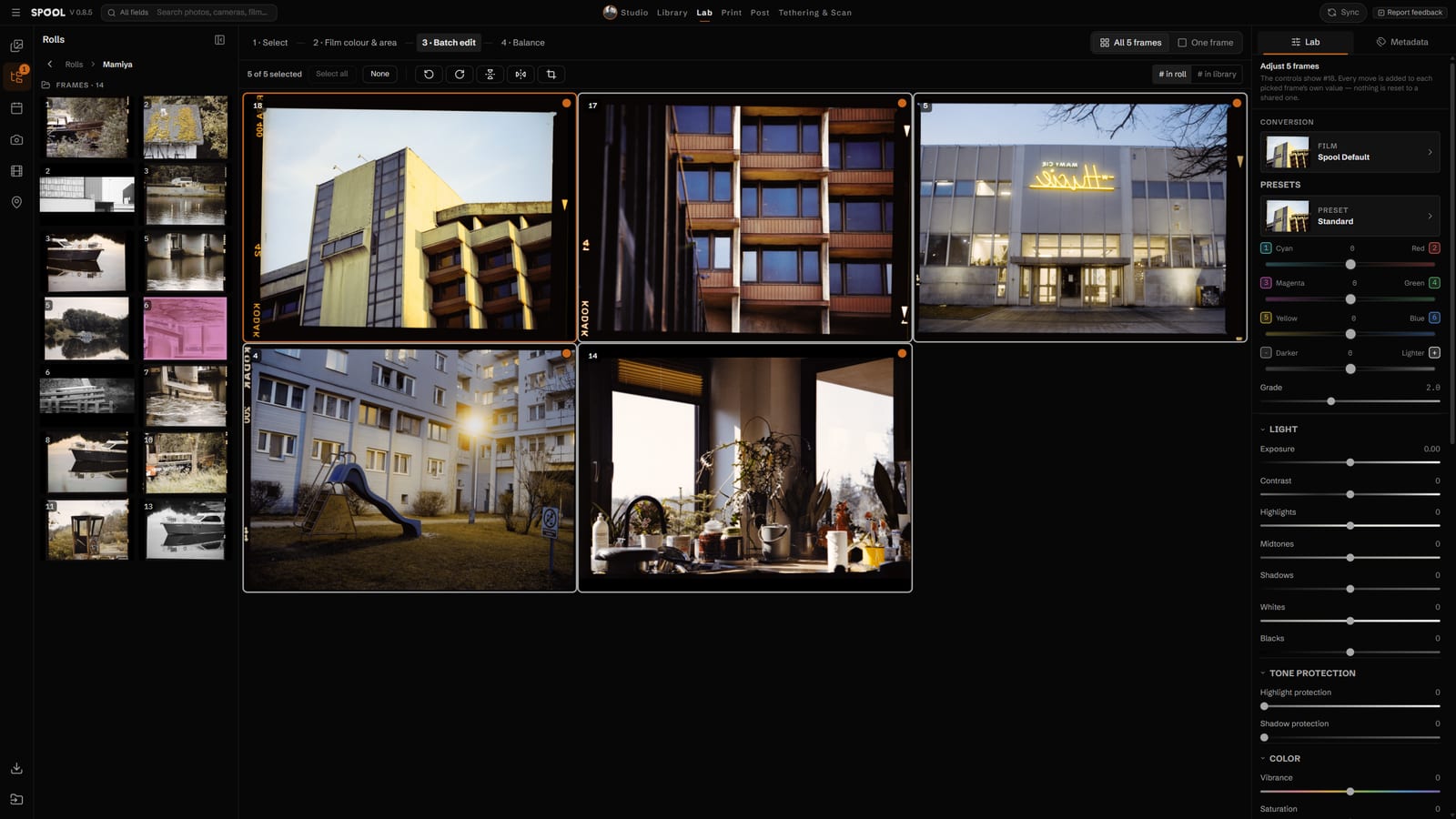
Pick a whole roll in Select and convert it in one go. Batch edit then grades every frame together.
12345
Select all or None — or click frames to pick them.
Picked frames have an orange outline.
Rotate, mirror and crop act on every picked frame.
Film, presets, colour and light: every move is added to each frame from its own value, so frames you balanced one by one stay balanced.
All frames shows the grid, One frame a single large one.
Fine-tune colour and retouch
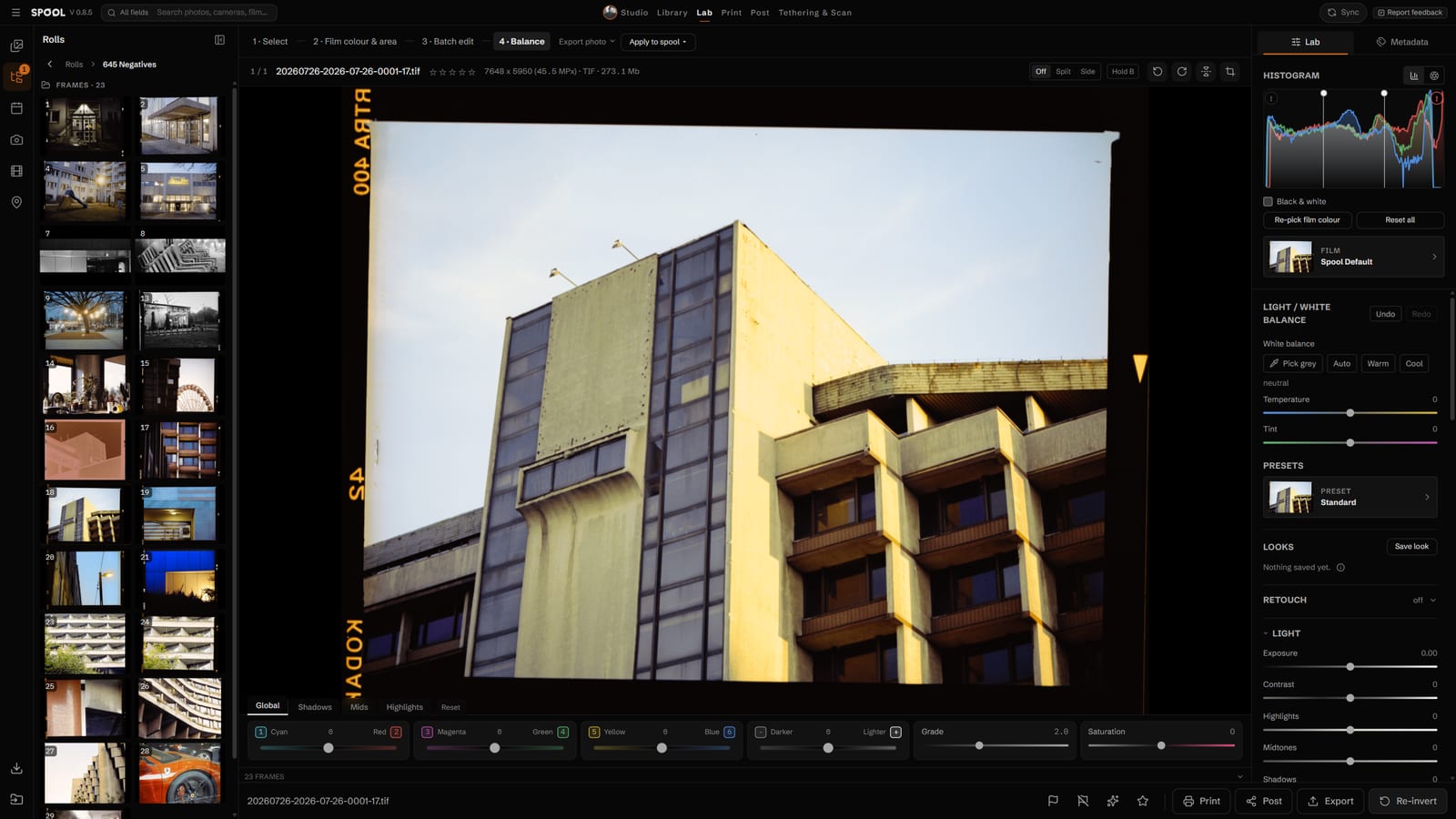
Balance works on one frame with every tool: histogram, film stocks, white balance, colour by tone, dust removal.
1234567
Drag the two markers on the histogram to set where shadows end and highlights begin.
Film: see this frame on every stock and pick one.
White balance: Pick grey and click something neutral, or try Auto, Warm, Cool.
The colour bar: Cyan–Red, Magenta–Green, Yellow–Blue, lighter/darker, grade — for all tones or just shadows, mids or highlights.
Retouch: paint over dust and hairs and they are healed from the picture around them.
Compare before and after: Off, Split, Side — or hold B.
Export this photo, or Apply to spool to give other frames the same look.
Export
Save finished photos at full resolution, sized for the web or ready for a print lab.
123456
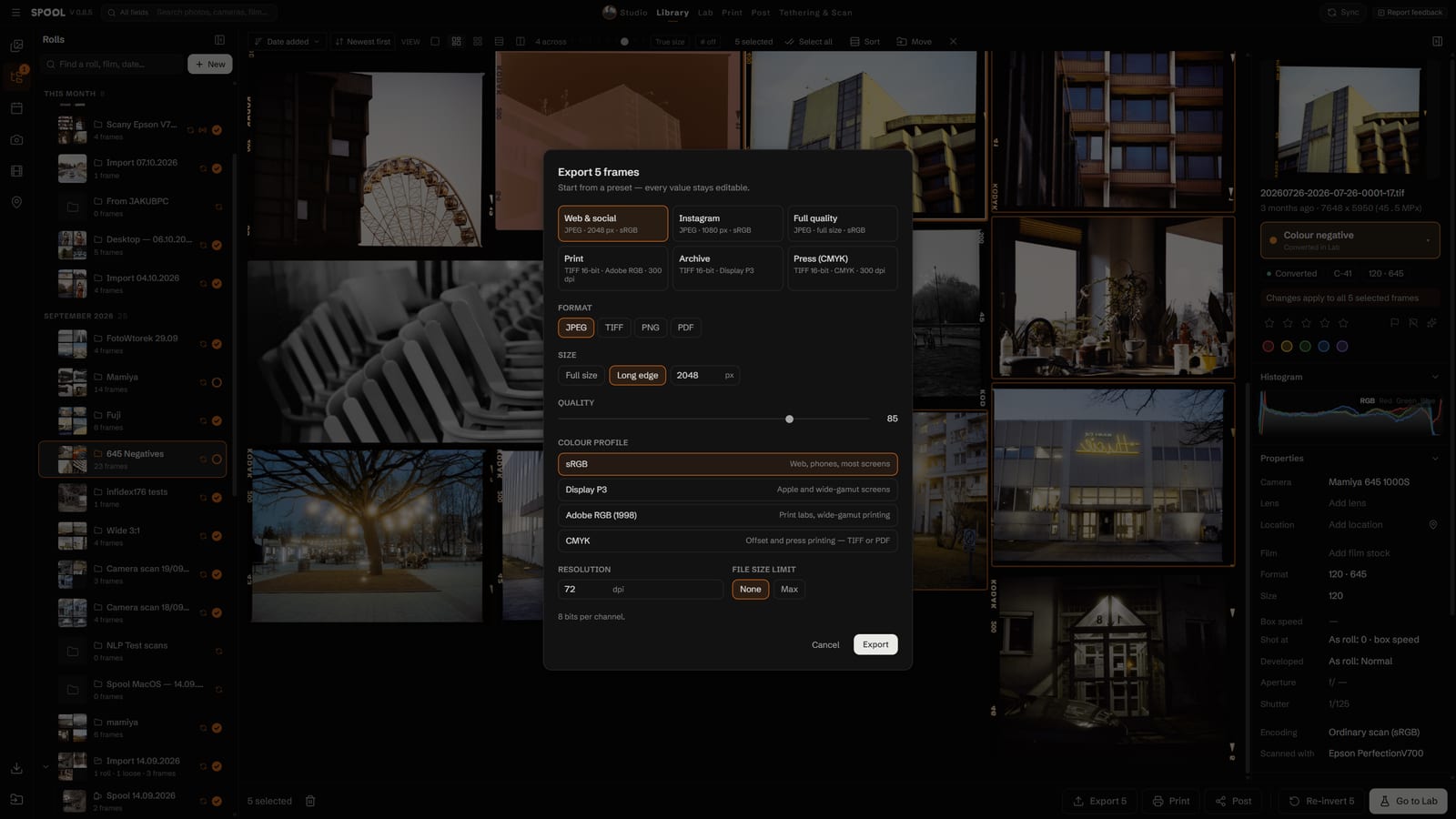
Select the frames and click Export, then pick a format.
Start from a preset: Web & social, Instagram, Full quality, Print, Archive, Press.
JPEG, TIFF, PNG or PDF.
Full size, or a long edge in pixels.
Colour profile: sRGB for screens, Display P3, Adobe RGB for print labs, CMYK for press.
Export, then choose the folder.
Print
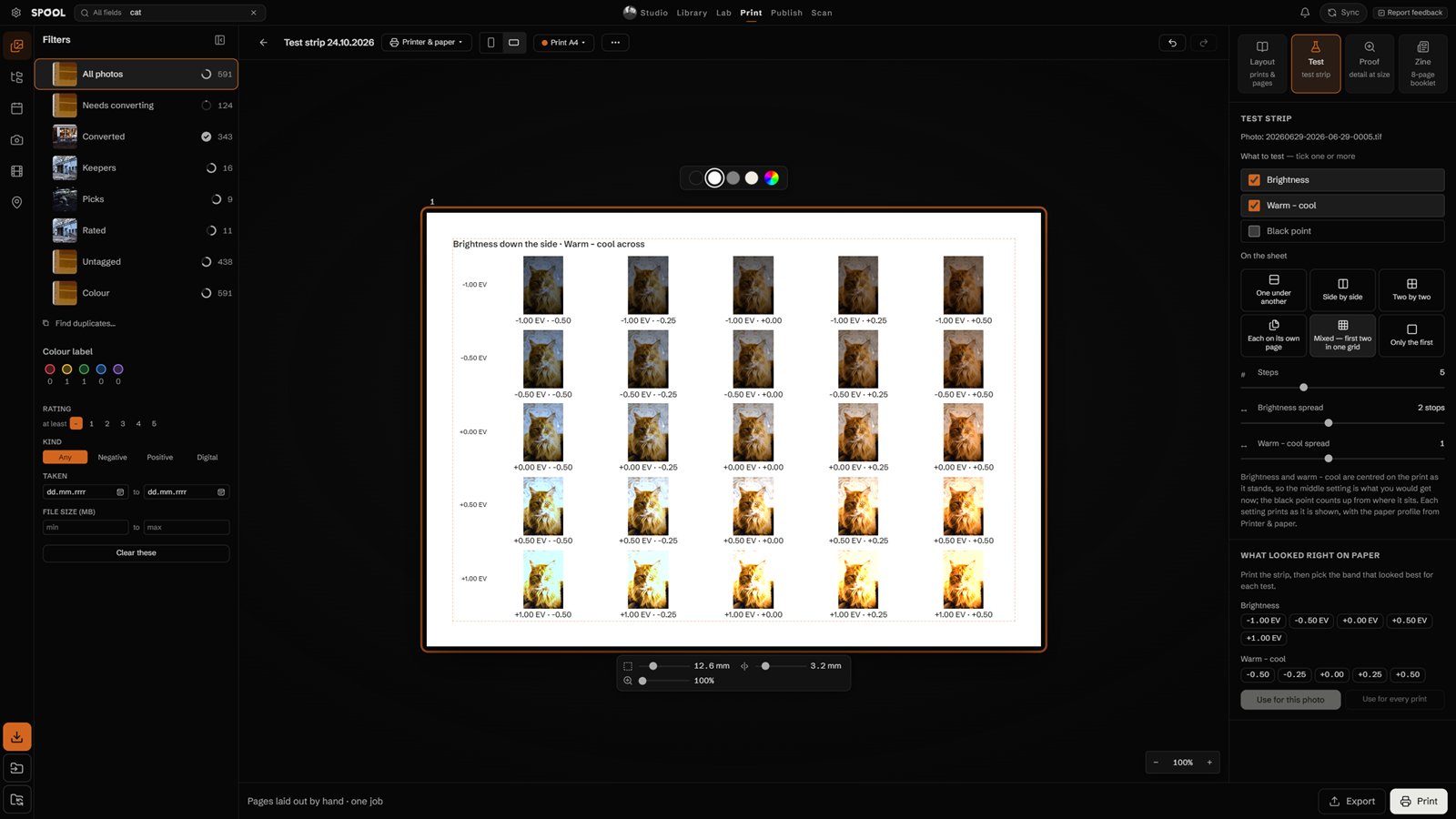
Print and Publish share one page editor. The page sits in the middle; what you change most is on the page itself, above and below it, and follows what you click. Start with a test strip, then print.
12345678
Choose what to print: Layout for prints and pages, Test for a test strip, Proof to see detail at the real size, Zine for an eight-page booklet. Right-click any frame in the Library or Lab and Print ▸ starts one with it.
Printer & paper: the printer, the paper size and the paper profile. Print asks for them first if they are not set.
Portrait or landscape.
For a test strip, tick what to test: brightness, warm–cool, black point — one or two at once.
How the test sits on the sheet: bands of one picture, whole copies, or Mixed — two tests in one grid. Steps and spread set how far apart the copies are. Every copy is labelled on the paper.
Under the page: margin, gap and grid. Click a photo instead and the same bar holds its crop, border and corners; click text and it holds font, size and alignment. Drag a corner handle to scale or turn a box.
After printing, pick the band that looked right on paper. Use for this photo, or Use for every print, and every later print gets it.
Print. Spool shows how far along it is; Export saves the page as a file instead.
Proofs at the real size
In Proof, tick the print sizes you are thinking of, from A4 to 1 × 2 m.
Each comes out at its real size on one sheet, side by side, stacked or in a grid, with its dpi and the distance it looks sharp from printed under it.
Drop another photo on the sheet and every format takes it.
Make a zine
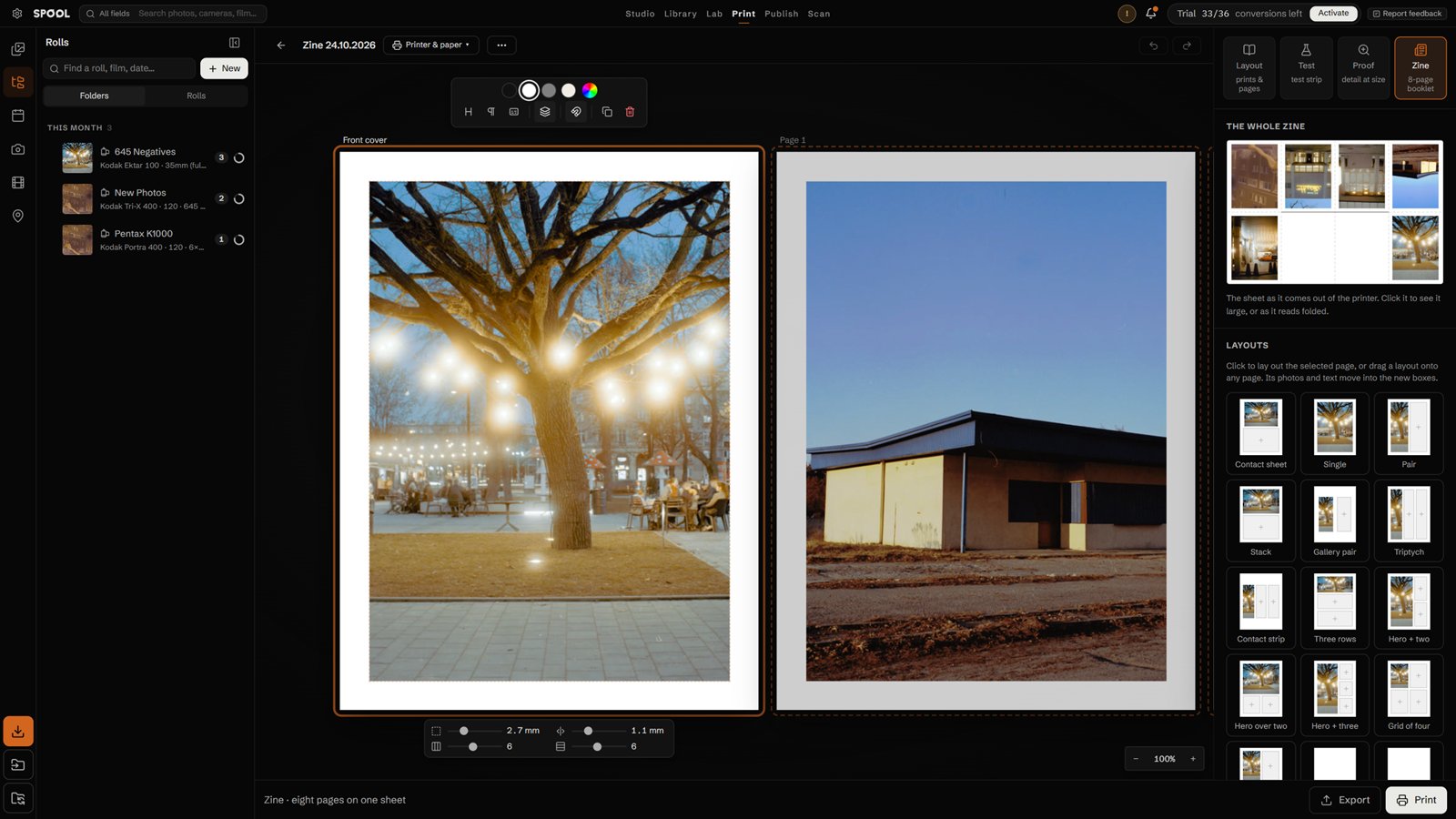
Eight pages on one sheet of paper: lay them out, print, make one cut, fold.
1234567
In Print, click Zine.
The whole zine: the sheet as it comes out of the printer. Click it to see it large, or as it reads folded.
The pages run from the front cover to the back. Drag frames from the left panel onto them; drag a photo inside its box to move it.
Click a layout to lay out the selected page, or drag one onto any page. Its photos and text move into the new boxes.
The bar above the page: background colour, a heading, text, a photo box, layers, a copy of the page, delete. Every page together changes all eight at once.
Printer & paper: A4 or Letter. In the printer's own settings turn off two-sided printing, borderless and any “fit to page”, so the folds land in the right place.
Print.
How to fold it
Fold in half, short edges together. Crease, open.
Fold both short edges to the middle. Crease, open — four columns.
Fold in half the long way, pictures outside.
From the folded edge, cut along the middle crease through the two middle panels only.
Open, fold long-ways again, and push the two ends toward each other until the pages meet.
Fold flat with the cover outside. Pages run 1 to 8.
Publish
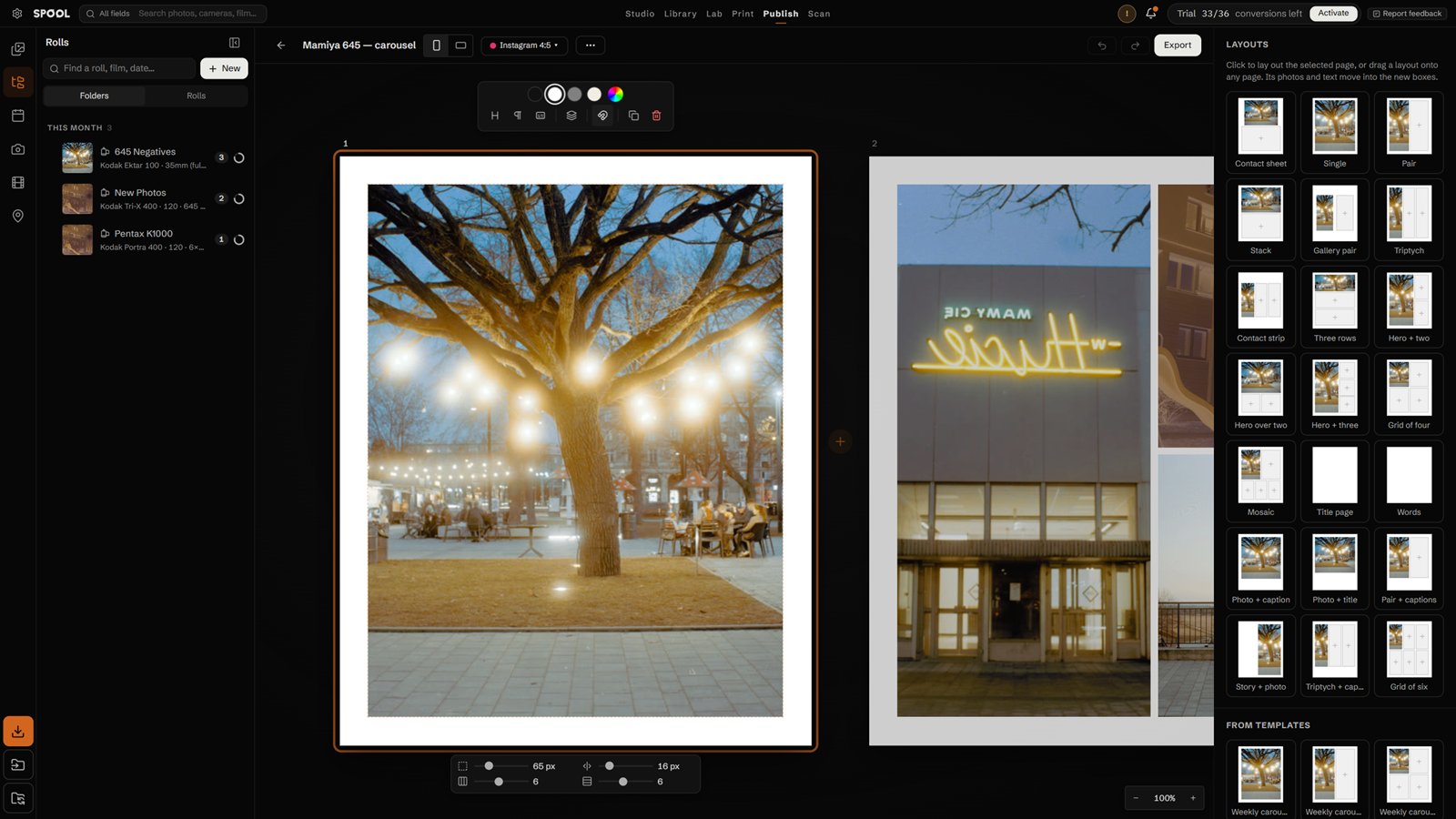
Posts and carousels, laid out by hand in the same page editor as Print: put frames and text anywhere, snap them to a grid, start from a layout or a template.
12345678
The size: Instagram 4:5, 3:4 or square, a story, 16:9, Pinterest, or your own. Right-click any frame and Publish ▸ starts a post with it.
Portrait or landscape.
The bar above the page: background colour, a heading, text, a photo box, layers, a copy of the page, delete.
Click a page, a photo or a text to work on it; Shift-click several boxes of the same kind to change them together. Every page together changes the whole carousel at once. The + between pages adds one.
Under the page: margin, gap and grid for a page; crop, border and corners for a photo; font, size, colour and alignment for text.
Layouts: click one to lay out the selected page, or drag it onto any page.
From templates: your saved posts. Start from one and fill it with a new roll.
Export: every page at full size, numbered in order, ready to upload.
Sync between computers
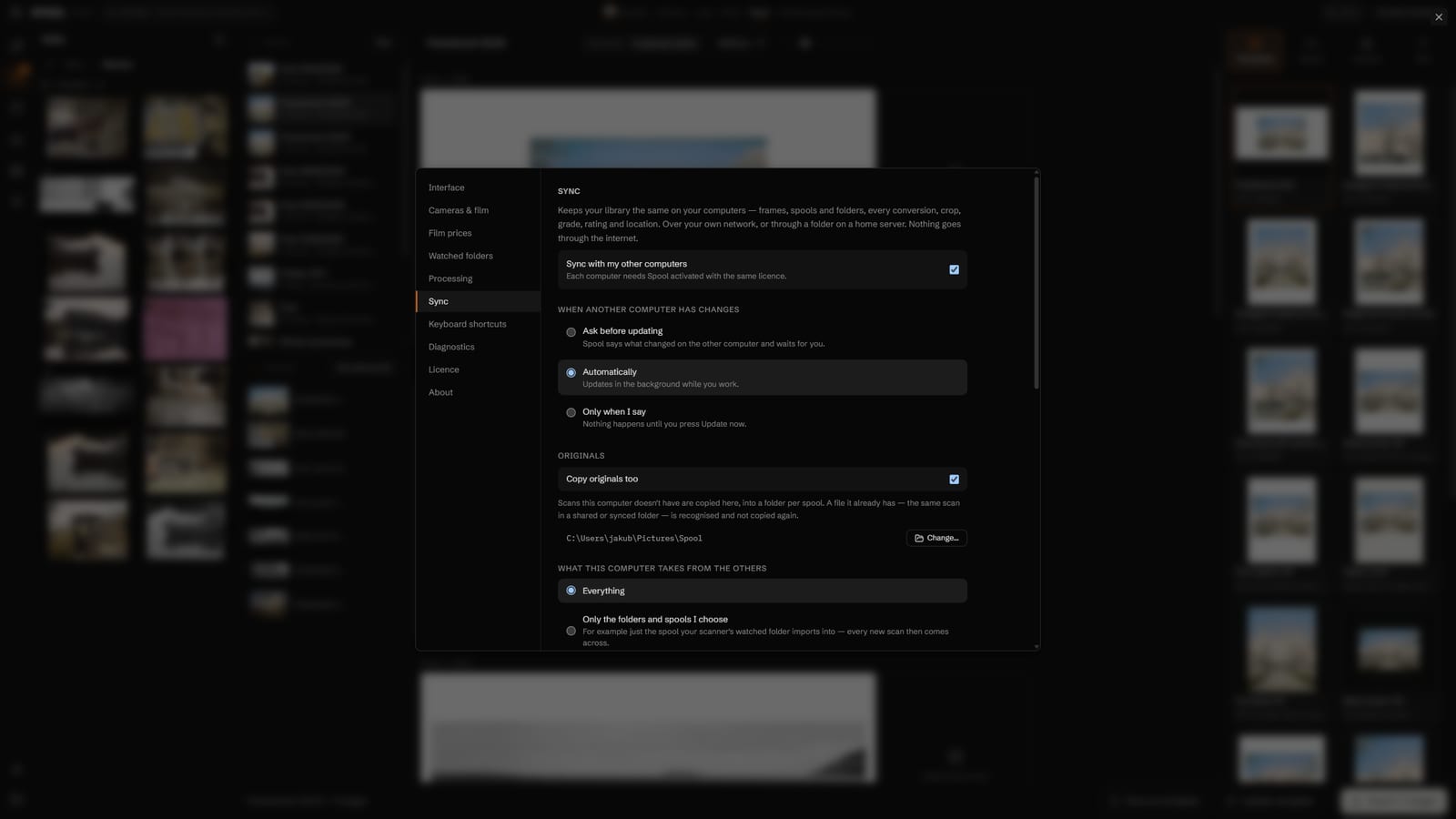
Keep the same library on your desktop and your laptop — every roll, conversion and edit — over your own network.
12345
Click Sync at the top, then Sync options.
Turn on “Sync with my other computers” on each one. They need Spool activated with the same licence and the same network.
Choose when changes come in: ask first, automatically, or only when you say.
Copy originals too: scans this computer doesn't have are copied into a folder.
Take everything, or only the rolls and folders you choose.